
 IN





About PNB statements
PNB (Punjab National Bank) is one of India's biggest public-sector banks, and its e-statement PDF is password-protected. For a high-street account like this, the statement is a normal monthly PDF you pull from PNB net banking, where the e-statement downloads as a password-protected PDF.
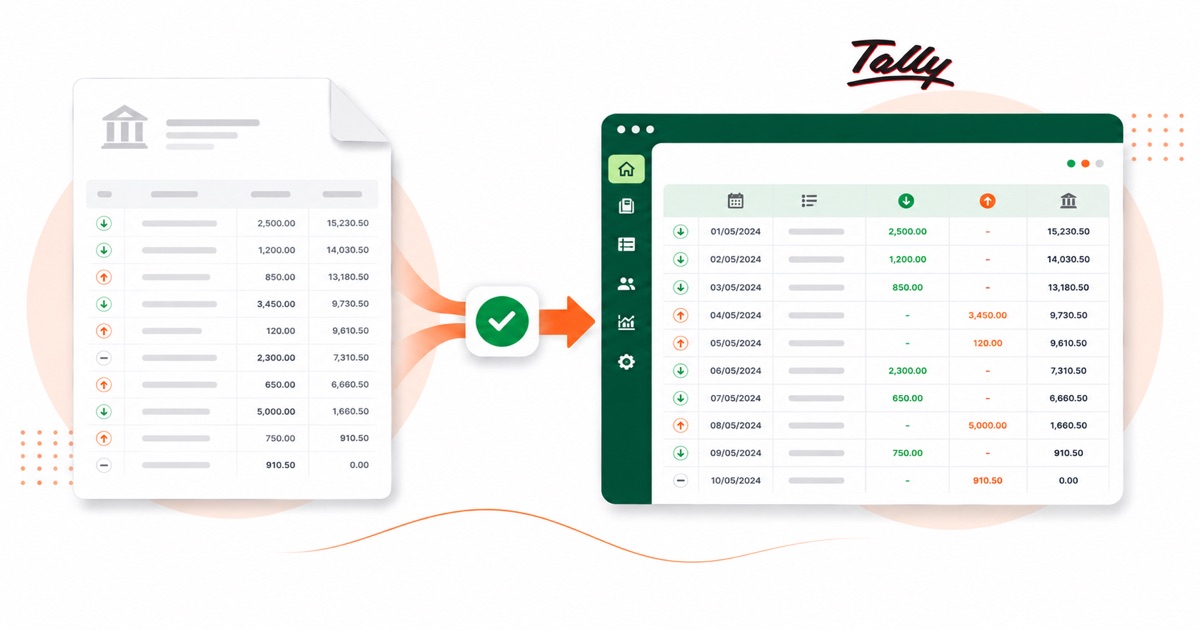
It helps to know how the statement is put together. PNB still gives cheques their own Instrument/Cheque No column next to the UPI and NEFT narration, in a password-protected PDF. A plain PDF export flattens that structure; the converter keeps each piece in its own column.
Dates on the statement read as DD/MM/YYYY and amounts are in INR (rupees). The e-statement comes password-protected — you type that password in once and it's opened right here in your browser, so the file isn't sent off anywhere to be opened. Even a scanned or photographed statement is fine; OCR reads it into the same columns, and the balance check still runs.
From there it's a normal Tally import: the heavy lifting of reading the PDF is already done.
Why people convert PNB to Tally
Keying a month of PNB transactions into Tally one voucher at a time is slow and easy to fumble. Converting the statement turns the whole month into Receipt and Payment vouchers you import in one go, posted to the ledgers you name.
The common case is a bookkeeper handed a folder of PNB PDFs and told to "get these into Tally." Converting each one is far quicker than retyping, and the balance check means you trust the totals before they land in the books.
Import a PNB statement into Tally
Tally Prime imports the XML as Receipt and Payment vouchers.
- Convert the PDF above, type your bank ledger and counter ledger names exactly as they are in your company, and download the Tally XML.
- In TallyPrime: Alt+O (Import) → Transactions. In Tally.ERP 9: Gateway of Tally → Import of Data → Vouchers.
- Select the XML file.
- Check Alt+Y (Data) → All Exceptions for any voucher Tally rejected — usually a ledger name that doesn't match.
One honest caveat
Every voucher posts to the two ledger names you enter before downloading (your bank ledger and a counter such as "Suspense"). Tally has no mapping step for XML imports, so both ledgers must already exist in the company with exactly those names. The vouchers are valid, balanced double entries; the ledger choices are yours.
The totals are checked first
The converter checks the maths before handing you the file — so if a transaction dropped out of the PDF, you know about it now, not when the Tally balance is off.
Frequently asked questions
How does a PNB statement get into Tally?
Yes — it imports as Receipt and Payment vouchers (TallyPrime: Alt+O → Import → Transactions). You type your bank and counter ledger names before downloading, and those ledgers need to already exist in your company with exactly those names.
What does a PNB statement look like?
PNB still gives cheques their own Instrument/Cheque No column next to the UPI and NEFT narration, in a password-protected PDF. The converter reads each of those into its own column, so the Tally XML imports into Tally cleanly.
How many months can I convert at once?
Whatever you download in one PDF from PNB net banking, where the e-statement downloads as a password-protected PDF. A multi-month e-statement converts in a single pass, and the balance is checked across the whole file.
My PNB PDF is password-protected — does that work?
Yes. You enter the password once and it's opened in your browser — the file isn't uploaded anywhere to be opened. After that it converts like any other statement.
Is it free?
Converting is free to start. Excel, CSV and JSON download with no login; the Tally file is included with every paid plan, starting with Starter.