
 IN





About HDFC statements
HDFC Bank is India's largest private-sector bank, and its e-statement arrives as a password-protected PDF. You grab the statement PDF from HDFC NetBanking, where the e-statement downloads as a password-protected PDF — same as you would for any branch-based account.
The part a copy-paste can't handle is the layout. An HDFC statement is dominated by UPI entries — long payee-and-reference strings — with a Chq/Ref No column, and it arrives password-protected. The converter reads all of that into its own columns instead of losing it.
Amounts are in INR (rupees) and the dates run DD/MM/YYYY. Since the PDF is password-locked, you enter the password once and it's handled in your browser before anything is converted. Scanned or photographed copies work too — they're read with OCR — and the running balance is checked either way before you download.
From there it's a normal Tally import: the heavy lifting of reading the PDF is already done.
Why people convert HDFC to Tally
For Indian businesses on Tally, an HDFC statement usually means a stack of vouchers to enter. Converting it loads them as balanced Receipt and Payment vouchers in a single import, so you only deal with the ledger mapping.
It also saves the back-and-forth at year end. Instead of asking a client for a CSV their HDFC login may not even offer, you take the PDF they already have and convert it, so the numbers in Tally match the statement line for line.
Import an HDFC statement into Tally
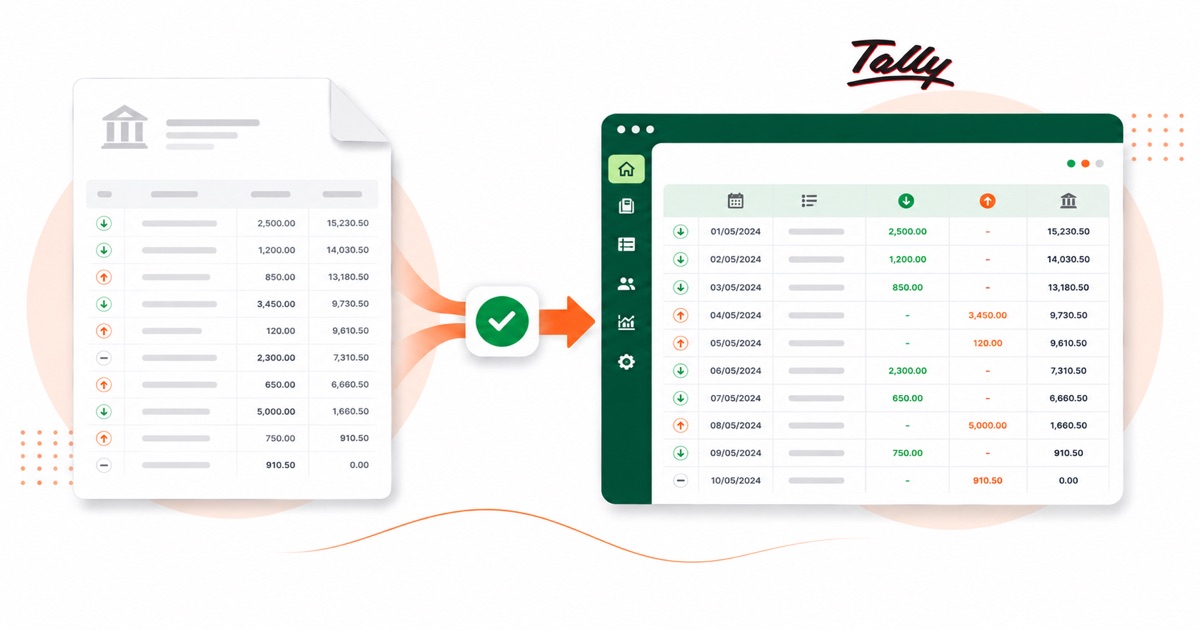
Tally Prime imports the XML as Receipt and Payment vouchers.
- Convert the PDF above, type your bank ledger and counter ledger names exactly as they are in your company, and download the Tally XML.
- In TallyPrime: Alt+O (Import) → Transactions. In Tally.ERP 9: Gateway of Tally → Import of Data → Vouchers.
- Select the XML file.
- Check Alt+Y (Data) → All Exceptions for any voucher Tally rejected — usually a ledger name that doesn't match.
One honest caveat
Every voucher posts to the two ledger names you enter before downloading (your bank ledger and a counter such as "Suspense"). Tally has no mapping step for XML imports, so both ledgers must already exist in the company with exactly those names. The vouchers are valid, balanced double entries; the ledger choices are yours.
The totals are checked first
The totals are checked before you download. If a row is missing, the statement gets flagged right here — so a gap shows up before it reaches Tally or your client, not after.
Frequently asked questions
Does the XML load straight into Tally Prime?
Yes — it imports as Receipt and Payment vouchers (TallyPrime: Alt+O → Import → Transactions). You type your bank and counter ledger names before downloading, and those ledgers need to already exist in your company with exactly those names.
How is an HDFC statement laid out?
An HDFC statement is dominated by UPI entries — long payee-and-reference strings — with a Chq/Ref No column, and it arrives password-protected. The converter reads each of those into its own column, so the Tally XML imports into Tally cleanly.
How many months can I convert at once?
Whatever you download in one PDF from HDFC NetBanking, where the e-statement downloads as a password-protected PDF. A multi-month e-statement converts in a single pass, and the balance is checked across the whole file.
My HDFC PDF is password-protected — does that work?
Yes. You enter the password once and it's opened in your browser — the file isn't uploaded anywhere to be opened. After that it converts like any other statement.
Do I have to pay up front?
Converting is free to start. Excel, CSV and JSON download with no login; the Tally file is included with every paid plan, starting with Starter.