
 IN





About Axis statements
Axis Bank is one of India's bigger private banks, and its e-statement comes as a password-protected PDF. The file you want is the official statement PDF from Axis internet banking, where the e-statement downloads as a password-protected PDF, not a printed mini-statement or a transaction search.
The part a copy-paste can't handle is the layout. Axis lays the narration out in a Particulars column beside Debit and Credit amounts, delivered as a password-protected PDF. The converter reads all of that into its own columns instead of losing it.
The figures keep their INR (rupees) values and the DD/MM/YYYY date order. You'll enter the PDF password once, in the browser, and then it converts like any other statement. A photo or scan of the statement converts as well: OCR lifts the figures into columns and the totals are reconciled before download.
You end up with a file Tally accepts on the first try, with the PDF-wrangling taken care of before it gets there.
Why people convert Axis to Tally
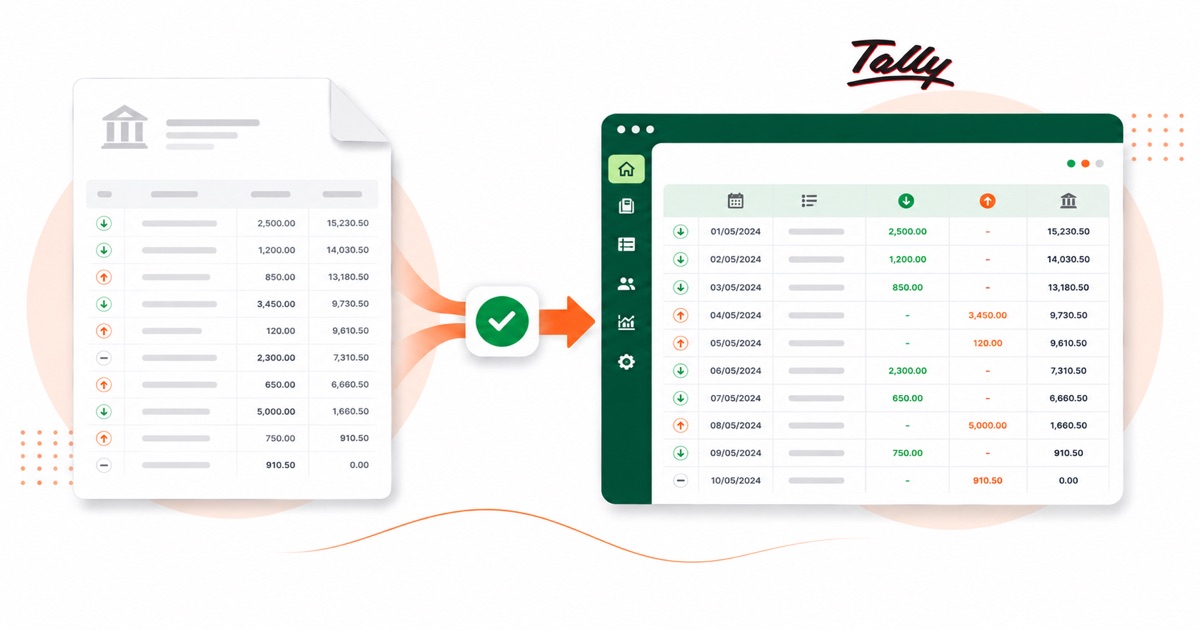
For Indian businesses on Tally, an Axis statement usually means a stack of vouchers to enter. Converting it loads them as balanced Receipt and Payment vouchers in a single import, so you only deal with the ledger mapping.
It's handy mid-year too, not just at catch-up. A one-off Axis account, a statement the feed skipped, or a closed account you still need on file — convert the PDF and it goes into Tally like any other import.
Import an Axis statement into Tally
Tally Prime imports the XML as Receipt and Payment vouchers.
- Convert the PDF above, type your bank ledger and counter ledger names exactly as they are in your company, and download the Tally XML.
- In TallyPrime: Alt+O (Import) → Transactions. In Tally.ERP 9: Gateway of Tally → Import of Data → Vouchers.
- Select the XML file.
- Check Alt+Y (Data) → All Exceptions for any voucher Tally rejected — usually a ledger name that doesn't match.
One honest caveat
Every voucher posts to the two ledger names you enter before downloading (your bank ledger and a counter such as "Suspense"). Tally has no mapping step for XML imports, so both ledgers must already exist in the company with exactly those names. The vouchers are valid, balanced double entries; the ledger choices are yours.
The totals are checked first
Before the Tally XML downloads, the running balance is checked end to end. A missing or doubled line is caught at this step, not after it's already in Tally.
Frequently asked questions
How does an Axis statement get into Tally?
Yes — it imports as Receipt and Payment vouchers (TallyPrime: Alt+O → Import → Transactions). You type your bank and counter ledger names before downloading, and those ledgers need to already exist in your company with exactly those names.
How is an Axis statement laid out?
Axis lays the narration out in a Particulars column beside Debit and Credit amounts, delivered as a password-protected PDF. The converter reads each of those into its own column, so the Tally XML imports into Tally cleanly.
How many months can I convert at once?
Whatever you download in one PDF from Axis internet banking, where the e-statement downloads as a password-protected PDF. A multi-month e-statement converts in a single pass, and the balance is checked across the whole file.
Can it open a password-locked Axis statement?
Yes. You enter the password once and it's opened in your browser — the file isn't uploaded anywhere to be opened. After that it converts like any other statement.
Do I have to pay up front?
Converting is free to start. Excel, CSV and JSON download with no login; the Tally file is included with every paid plan, starting with Starter.